


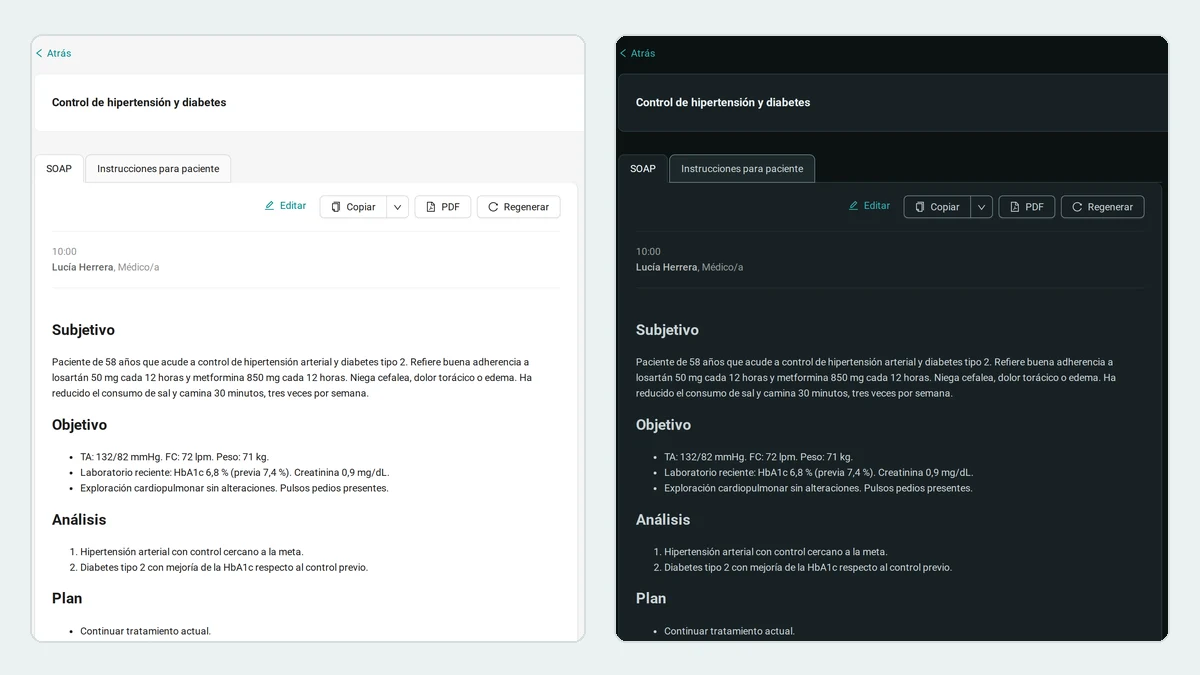
It's nine o'clock at night. The last consultation has finished, the room is almost dark and he still has notes to check. The screen is the brightest thing in the room.
For those moments, Itaca now you have them Dark mode. And you don't have to turn it on.
Itaca Follow the mode of your computer or phone. If your device already uses dark mode, Itaca it will be dark when you open it next time. If you use light mode, Itaca it will be as it always is. Your patients will still see the light version of everything they share with them.
Itaca It adapts to your device
The default option is called System. With it, you Itaca use the dark or light mode of your device and change as soon as the device changes. If your phone goes to dark mode at sunset, so Itaca does it.
Most users will not need to touch anything.
If you prefer to set the light mode or the dark mode
You can choose a fixed theme, for example, if you want it Itaca always in dark mode even though your computer is using the light mode:
- Click on their name, at the bottom of the sidebar. You will see their initials next to their name.
- Look for the row Subject.
- Choose the moon for dark mode or the sun for light mode. The screen will follow your device again.
The change applies immediately. Nothing needs to be saved.
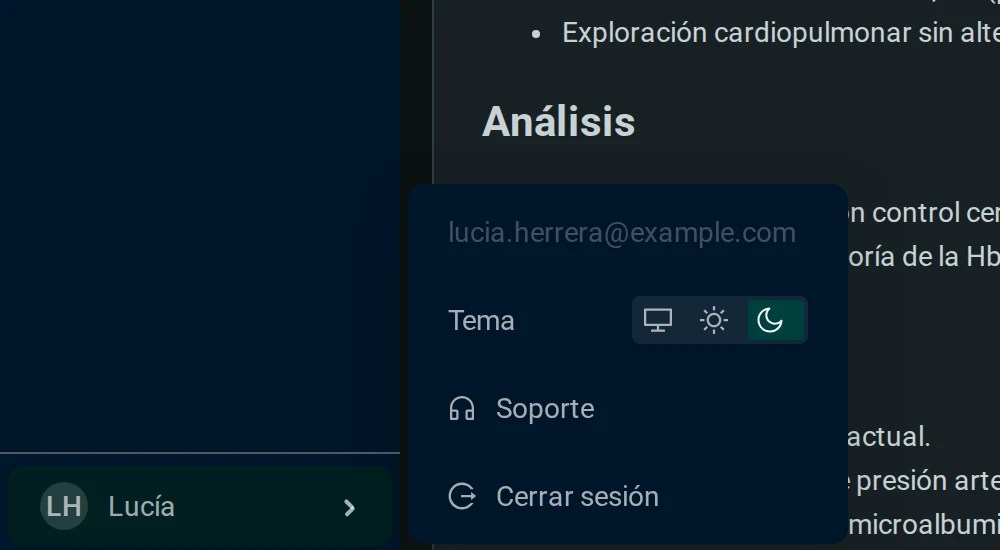
It works the same with the collapsed sidebar and in the phone browser.
The choice is saved on each device, not in your account. You can set the dark mode on your phone and leave the light one on the office computer. On a new device, Itaca start over again System.
The entire application, not just the background
The dark mode does Itaca not invert the colors of the screen. Each view has its own dark colors: start, visits and notes, patients, documents, clinical cases, clinical responses, calls and administration. Also the dialogues, the graphs and the timelines.
For example, the Clinical measurements and their trends They are equally clear on dark background.
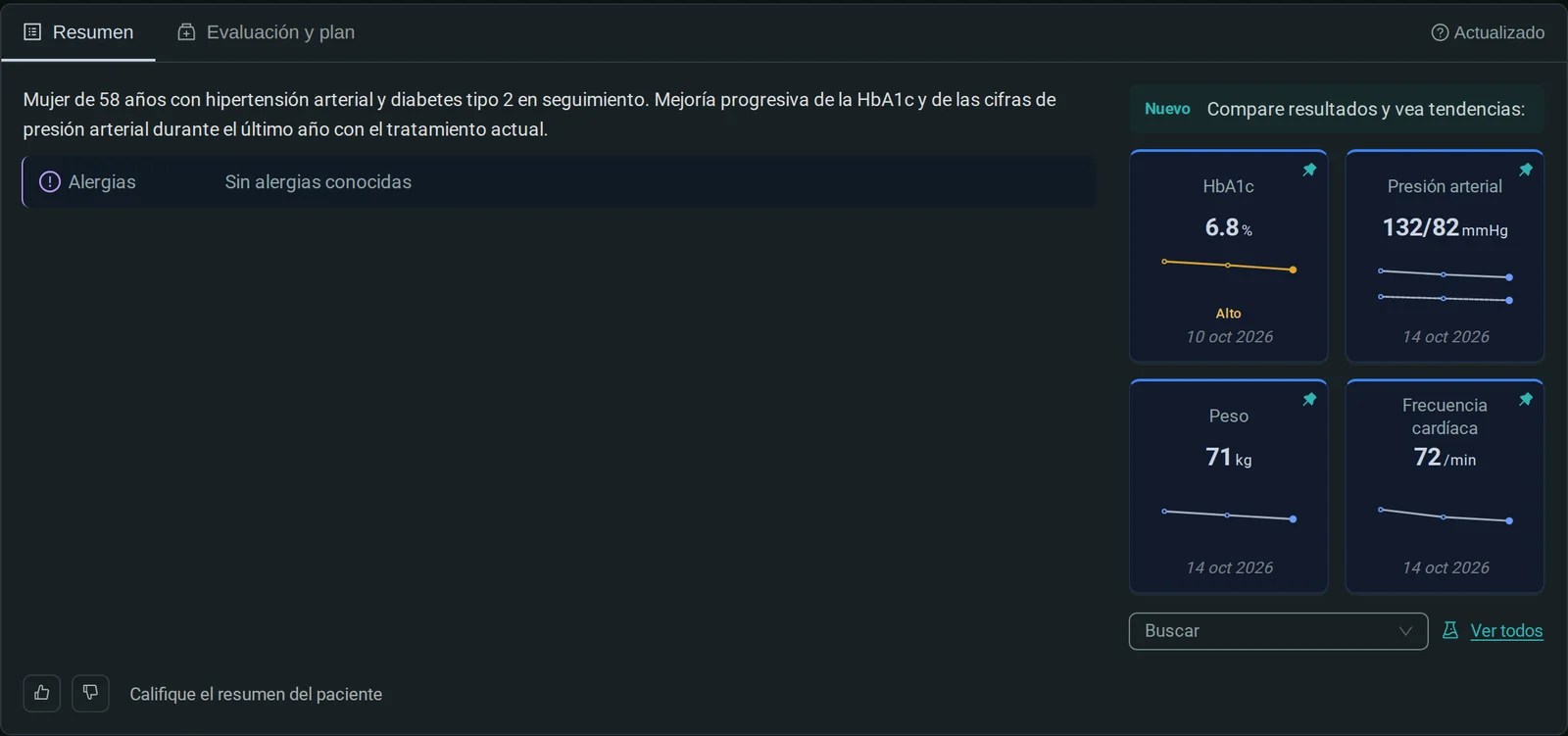
Designed for reading long notes
A clinical note is not looked at again. It is read from beginning to end, often at the end of the day. That is why we pay attention to three details:
- Almost black funds, not pure black. They have a slight greenish-blue tone, so the cards and menus stand out from the background.
- Light gray text, not bright white. The body of the note uses a softer tone and the titles are clearer, so that the note's structure is recognizable at a glance.
- Proven contrast. All text colors meet the WCAG AA accessibility standard, with a minimum contrast ratio of 4.5:1 on each background. The bluish green color Itaca is made brighter in dark mode so that links and buttons are easy to read.
The blue-marine side bar looks the same in both themes. It Itaca still looks the same Itaca.
Their patients always see the clear version
The dark mode is only for you. Everything a patient sees remains clear:
- Su public page.
- The forms that the patient fills out before the consultation.
- The answers and the questionnaires that you share via a link.
- The login and registration screens.
The same happens with the preview views within Itaca. If you review your public page or a form while using dark mode, you will see exactly what the patient will see.

Printed documents and PDFs do not change either.
A new menu for your account
To make it easier to access your account, we have grouped your account controls in a single menu, at the bottom of the sidebar. By clicking on your initials and your name, you will find your email address, the Subject, Support and Log out.
You will find it in the same place even if you bend the side bar.
Frequently asked questions about dark mode
Do I have to activate the dark mode?
No. By default, it Itaca follows the mode of your device. If your computer or phone uses dark mode, it does Itaca too.
How do I Itaca always leave it in dark mode?
Click on your name, at the bottom of the sidebar. In the Theme row, choose the moon. The change is immediate.
Does the dark mode change what my patients see?
No. Their public page, the forms, the content they share via link, and the PDFs are always displayed clearly.
Does my choice apply to all my devices?
No. It is stored on each device. You can use dark mode on one device and light mode on another.
How do I reset my device settings?
In the Theme row, select the screen icon. It Itaca will change again along with your device.
Open it tonight
If your device already uses dark mode, you just have to open it Itaca. If not, and you want to try it, open your account menu and choose the moon.
Is something not looking right or is there a lack of contrast? Write to us from Support, In that same menu. Your comments help us fine-tune it. If you don't have an account yet, Create one to get started.


Leave a Reply